

Banner campaigns
Banner campaigns let you promote products, categories, brands, or seasonal content directly inside Luigi’s Box autocomplete and search results. In the Luigi’s Box application, you define which queries should trigger a banner, what image should be shown, where it should appear, and where the user should land after clicking it.
There is no separate banners endpoint. Banner campaign data is included in the standard autocomplete and search responses under the campaigns key.
Choose your integration path
Section titled “Choose your integration path”Using autocomplete.js or search.js
Section titled “Using autocomplete.js or search.js”If you are using Luigi’s Box frontend libraries, banner campaign support is already built in. Once you configure banner campaigns in the Luigi’s Box application, the libraries render them automatically.
Using the API directly
Section titled “Using the API directly”If you built your own autocomplete or search UI on top of Luigi’s Box APIs, you must render banners yourself. When a query matches an active banner campaign, the response includes a campaigns array. Your integration is responsible for:
- reading the returned positions
- choosing the appropriate image URL for desktop or mobile
- rendering the banner into your UI
- linking the banner to the destination URL returned by the campaign
Response structure
Section titled “Response structure”The campaigns array contains one or more campaign objects. Each object describes a banner campaign that matched the current query.
Each campaign object contains:
id— campaign identifiertarget_url— destination URL opened after clickbanners— object keyed by banner position
Each position inside banners contains:
desktop_url— image for larger screensmobile_url— image for smaller screens
Autocomplete response example
Section titled “Autocomplete response example”{ "campaigns": [ { "id": 9, "target_url": "https://www.e-shop.com/harry-potter", "banners": { "autocomplete_list": { "desktop_url": "https://www.e-shop.com/harry-potter-1.jpg", "mobile_url": "https://www.e-shop.com/harry-potter-2.jpg" } } } ]}Search response example
Section titled “Search response example”{ "campaigns": [ { "id": 13, "target_url": "https://www.e-shop.com/harry-potter", "banners": { "search_header": { "desktop_url": "https://www.e-shop.com/harry-potter-1.jpg", "mobile_url": "https://www.e-shop.com/harry-potter-2.jpg" }, "search_footer": { "desktop_url": "https://www.e-shop.com/harry-potter-3.jpg", "mobile_url": "https://www.e-shop.com/harry-potter-4.jpg" } } } ]}Banner positions
Section titled “Banner positions”| Area | Position key | Typical placement |
|---|---|---|
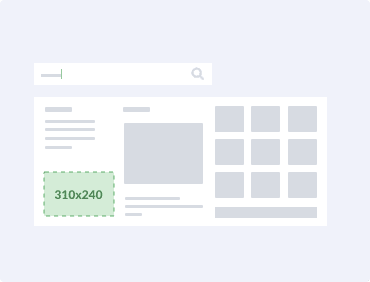
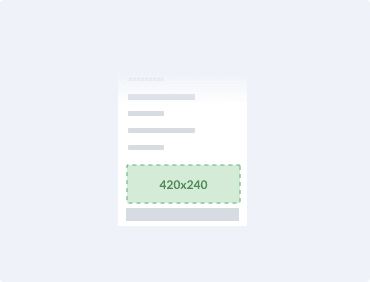
| Autocomplete | autocomplete_list | Banner inside the list area |
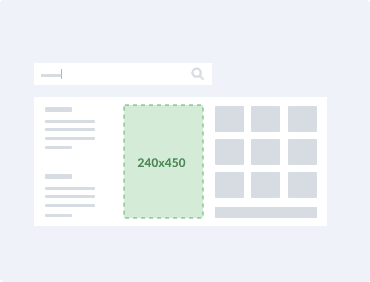
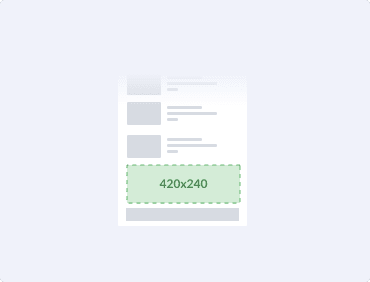
| Autocomplete | autocomplete_top | Banner next to the featured top product |
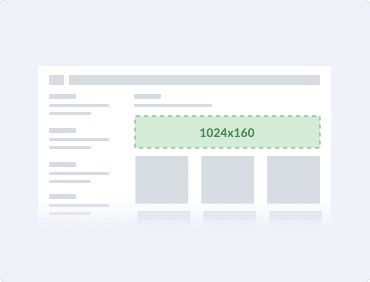
| Search | search_header | Banner above the result list |
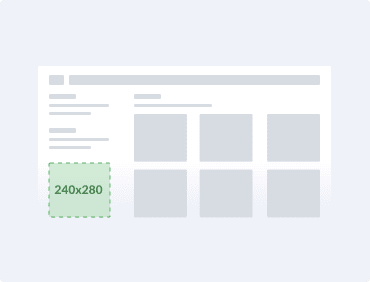
| Search | search_panel | Banner in the side panel |
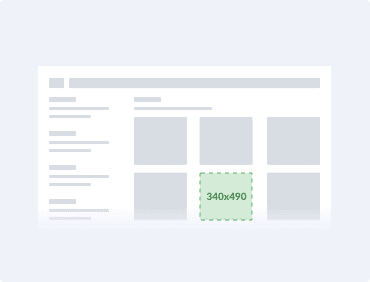
| Search | search_list | Banner inserted into the results list |
| Search | search_footer | Banner below the result list |
autocomplete_list
Section titled “autocomplete_list”Desktop: 310x240px (JPG, 620x480, max 600kb)
Mobile: 420x240px (JPG, 840x480, max 600kb)
autocomplete_top
Section titled “autocomplete_top”Desktop: 240x450px (JPG, 480x900, max 600kb)
Mobile: 420x240px (JPG, 840x480, max 600kb)
search_header
Section titled “search_header”Desktop: 1024x160px (JPG, 2048x320, max 600kb)
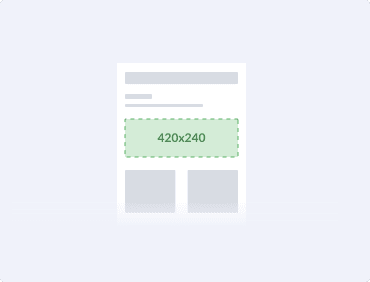
Mobile: 420x240px (JPG, 840x480, max 600kb)
search_panel
Section titled “search_panel”Desktop: 240x280px (JPG, 480x460, max 600kb)
Mobile: 420x240px (JPG, 840x480, max 600kb)
search_list
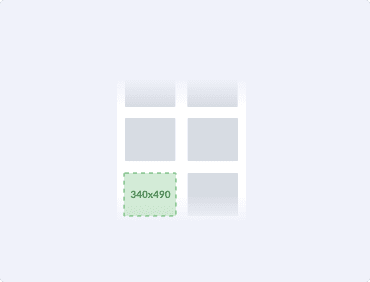
Section titled “search_list”Desktop: 340x490px (JPG, 680x980, max 600kb)
Mobile: 340x490px (JPG, 680x980, max 600kb)
search_footer
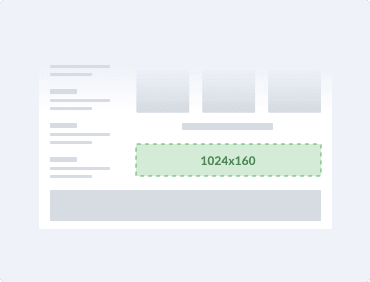
Section titled “search_footer”Desktop: 1024x160px (JPG, 2048x320, max 600kb)
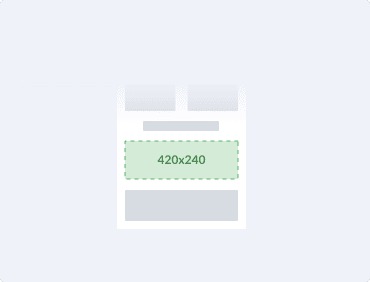
Mobile: 420x240px (JPG, 840x480, max 600kb)
Was this page helpful?
Thanks.