

Luigi's Box Magento 2 Integration Guide
Overview
Section titled “Overview”This guide walks you through integrating Luigi’s Box with your Magento 2 store. The integration enables:
- Search - AI-powered product search with typo tolerance and synonyms
- Product Recommendations - Personalized product suggestions
- Analytics - Insights into customer search behavior
- Automatic Data Sync - Your catalog stays up-to-date with Luigi’s Box
Time to Complete: 15-30 minutes Prerequisites: Magento 2.3.1+, PHP 7.4+, Admin access, Store accessible on the internet
⚡️ Expert Quickstart (TL;DR) — Click to expand
1. Install & Enable:
composer require luigisbox/magento2-integrationphp bin/magento setup:upgrade && \php bin/magento setup:di:compile && \php bin/magento setup:static-content:deploy -f && \php bin/magento cache:flush2. Activate:
- In Magento Admin, go to System → Extensions → Integrations
- Find LuigisboxIntegration and click Activate
- Click Allow and follow the popup to log in or create your account
3. Common Gotchas:
- Store Not Public: Activation will fail if your store is not on the internet. Test public access.
- Cloudflare: Regular Bot Fight Mode must be disabled. Super Bot Fight Mode requires a skip rule.
- Script Not Injected: If the script doesn't appear in your
<head>, add it manually via Content → Configuration → HTML Head.
Phase 1: Installation
Section titled “Phase 1: Installation”Step 1: Install via Composer
composer require luigisbox/magento2-integrationStep 2: Enable the Module
Run the following commands in sequence:
# Run database and schema upgradesphp bin/magento setup:upgrade
# Compile dependency injection configurationphp bin/magento setup:di:compile
# Deploy static content (CSS, JS, images)php bin/magento setup:static-content:deploy -f
# Clear all cachesphp bin/magento cache:flush
Step 3: Verify Installation
php bin/magento module:status Luigisbox_IntegrationExpected output: Module is enabled
In Magento Admin:
- Go to System → Extensions → Integrations
- Look for “LuigisboxIntegration” in the list
- Status should show
"Inactive"(will activate in Phase 3)
Phase 2: Network and security
Section titled “Phase 2: Network and security”Prerequisites check
Section titled “Prerequisites check”Before activating the integration, ensure your Magento store meets these requirements:
Store must be publicly accessible
Section titled “Store must be publicly accessible”Critical: Luigi’s Box needs to access your store’s API from the internet.
Will NOT work:
- Localhost or local development environments
- Staging servers behind VPN or firewall
- Stores with IP restrictions blocking external access
Will work:
- Production stores with public URLs
- Staging servers accessible from the internet
Test external access:
From a different network (mobile phone, external server):
curl -I https://your-store.com/Expected: HTTP 200 or 405 response (not timeout or connection refused)
Cloudflare configuration
Section titled “Cloudflare configuration”If your store uses Cloudflare, you need to configure bot protection settings:
If using Super Bot Fight Mode:
You can create a skip rule to allow Luigi’s Box traffic:
- Log into Cloudflare dashboard
- Go to Security → Security Rules
- Click Create rule
- Configure the rule:
- Rule name: Allow Luigi’s Box
- Expression:
(ip.src in {3.126.67.184 3.78.191.91 35.157.250.137 63.177.144.47 52.57.232.136 82.119.103.110} and http.user_agent eq "LuigisBox") - Choose action: Skip
- WAF components to skip:
- All remaining custom rules
- All rate limiting rules
- All managed rules
- All Super Bot Fight Mode rules
- More components to skip:
- User agent blocking
- Rate limiting rules
- Managed rules
- Rule placement: First
- Click Save
This allows Luigi’s Box to access your store’s API endpoints while keeping bot protection active for other traffic.
HTTP Basic Authentication (if applicable)
Section titled “HTTP Basic Authentication (if applicable)”If your store uses HTTP Basic Authentication (password protection), you need to allow Luigi’s Box to bypass it.
Configure Nginx to bypass basic auth:
The configuration has two parts, add them to your Nginx config file (typically /etc/nginx/sites-available/your-site):
Part 1: Add OUTSIDE the server block (at the top of your config file):
# Luigi's Box IP whitelistgeo $luigisbox_ip {    default 0;    3.126.67.184 1;    3.78.191.91 1;    35.157.250.137 1;    63.177.144.47 1;    52.57.232.136 1;    82.119.103.110 1;}
# Check for Luigi's Box User-Agentmap $http_user_agent $luigisbox_ua {    default 0;    "LuigisBox" 1;}
# Bypass auth only if BOTH IP AND User-Agent matchmap "$luigisbox_ip:$luigisbox_ua" $is_luigisbox {    default 0;    "1:1" 1;  # Both IP and User-Agent match = bypass auth}
Part 2: Add INSIDE your server block:
# Allow access if: Luigi's Box (IP+UA) OR valid auth credentialssatisfy any;
# Conditionally disable auth for Luigi's Boxset $auth_basic_realm "Restricted Access";if ($is_luigisbox = 1) {    set $auth_basic_realm off;}
auth_basic $auth_basic_realm;auth_basic_user_file /path/to/.htpasswd;  # Replace with your .htpasswd path
Test and reload Nginx:
sudo nginx -tsudo systemctl reload nginxSecurity information
Section titled “Security information”OAuth 1.0a authentication
Section titled “OAuth 1.0a authentication”The integration uses OAuth 1.0a for secure API access:
- No passwords stored - Token-based authentication only
- Encrypted communication - All API calls over HTTPS
- Read-only access - Extension cannot modify products or orders
- Revocable tokens - Can disable integration anytime
What Luigi’s Box can access
Section titled “What Luigi’s Box can access”Allowed Resources:
- Product catalog (SKU, name, description, price, images)
- Categories and category structure
- Inventory levels and stock status
- Product attributes (color, size, brand, custom attributes, etc.)
- Store configuration (currency, timezone, URL, locale)
- Parent-child product relationships (configurable, grouped, bundle products)
- Multi-source inventory data (warehouse locations and quantities)
NOT Allowed:
- Customer personal information
- Order history and purchase data
- Payment information
- Admin user accounts
- System passwords or keys
Phase 3: Activation
Section titled “Phase 3: Activation”Before you begin
Section titled “Before you begin”Important Prerequisites:
- Extension is installed (Phase 1 complete)
- Store is accessible from the internet (Phase 2 complete)
- You have Magento admin credentials
- Store has at least a few test products (recommended)
Estimated Time: 5-10 minutes
Step-by-step activation
Section titled “Step-by-step activation”Step 1: Access integration settings
Section titled “Step 1: Access integration settings”- Log into Magento Admin Panel
- Navigate to System → Extensions → Integrations
- Find LuigisboxIntegration in the list
- Click Activate button
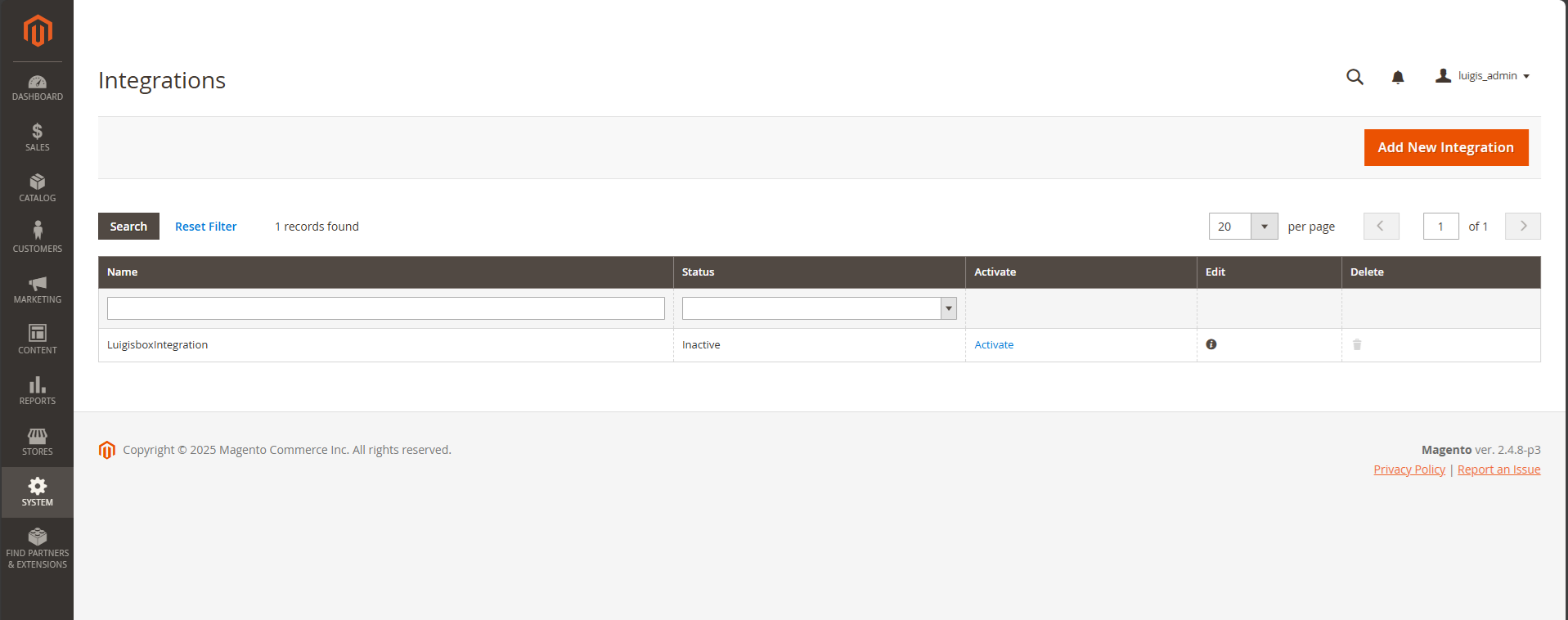
Step 2: Confirm activation
Section titled “Step 2: Confirm activation”A menu appears displaying the API permissions needed.
- Click Allow to proceed
- Magento generates OAuth credentials automatically
- Integration status changes to Active
Behind the Scenes:
- Magento creates OAuth consumer and access token
- Stores credentials in
oauth_consumerandoauth_tokendatabase tables - Integration is now ready to accept API requests
Step 3: Authorize with Luigi’s Box
Section titled “Step 3: Authorize with Luigi’s Box”After clicking Allow in Magento, a popup window opens from Luigi’s Box.
In the Luigi’s Box popup:
- You’ll be prompted to either create a new account or log in with existing credentials
- Follow the on-screen instructions to complete authentication
- After successful login or account creation, you’ll be redirected to the Luigi’s Box Web Application
Step 4: Get your tracking script
Section titled “Step 4: Get your tracking script”Once in the Luigi’s Box dashboard:
- You’ll be presented with your tracking script
- The script will look like:
<script src="https://scripts.luigisbox.tech/LBX-XXXXX.js"></script> - Note your tracker ID (the
LBX-XXXXXpart) for reference
The extension will attempt to inject this script automatically (see “Tracking Script Installation” section below).
Step 5: Verify integration status
Section titled “Step 5: Verify integration status”In Magento Admin:
- Go to System → Extensions → Integrations
- LuigisboxIntegration should show:
- Status: Active
- Consumer Key: Generated (long alphanumeric string)
Tracking script installation
Section titled “Tracking script installation”After successful activation, Luigi’s Box attempts to automatically inject its tracking script into your store.
What is the tracking script?
Section titled “What is the tracking script?”The tracking script enables:
- Search behavior tracking - What customers search for
- Product view tracking - Which products are viewed
- Click-through tracking - What search results are clicked
- Conversion tracking - Which searches lead to purchases
Example script:
<script src="https://scripts.luigisbox.tech/LBX-XXXXX.js"></script>Automatic injection (default)
Section titled “Automatic injection (default)”How It Works:
Luigi’s Box communicates with the Magento to automatically inject the tracking script into your store’s <head> element on all pages.
Success Verification:
- Open your store homepage in a browser
- View page source (right-click → View Page Source)
- Search for “luigisbox” or “LBX-”
- You should find:
<script src="https://scripts.luigisbox.tech/LBX-XXXXX.js"></script>
If Script Appears: Automatic injection succeeded! Skip to “Next Steps”
Manual script injection (fallback)
Section titled “Manual script injection (fallback)”When is this needed?
Automatic injection may fail if:
- Store uses custom theme that doesn’t include configuration-based scripts
- Cache isn’t cleared after activation
- Store configuration has been customized or overridden
Symptoms:
- Script doesn’t appear in page source after 10-15 minutes
Manual installation steps:
Via Magento admin
- In Magento Admin, go to Content → Configuration
- Click Edit for your store view
- Expand HTML Head section
- In Scripts and Style Sheets field, add:
(Replace<script src="https://scripts.luigisbox.tech/LBX-XXXXX.js"></script>
LBX-XXXXXwith your actual Luigi’s Box tracker ID from the dashboard) - Click Save Configuration
- Clear cache:
php bin/magento cache:flush
Verify manual installation:
- Open store homepage in incognito/private window (bypass cache)
- View page source
- Search for “luigisbox”
- Script should appear in
<head>section
Verification and testing
Section titled “Verification and testing”Verify integration is active
Section titled “Verify integration is active”Check that the integration is working correctly:
In Magento Admin:
- Go to System → Extensions → Integrations
- LuigisboxIntegration should show Status: Active
In Luigi’s Box Dashboard:
- Go to Catalog Browser section
- Check product count (should be > 0 after initial sync completes)
Verify tracking script
Section titled “Verify tracking script”- Open your store homepage in a browser
- View page source (right-click → View Page Source)
- Search for “luigisbox” or “LBX-”
- You should find:
<script src="https://scripts.luigisbox.tech/LBX-XXXXX.js"></script>
If script doesn’t appear, see “Manual Script Injection” section in Phase 3.
Initial sync
Section titled “Initial sync”Initial sync begins automatically after activation.
For detailed sync monitoring, see: Magento 2 Data Synchronization Guide
Next steps
Section titled “Next steps”Immediate (post-integration)
Section titled “Immediate (post-integration)”- Verify tracking script is installed (see “Tracking Script Installation”)
- Wait for initial sync to complete (5-60 minutes typically)
- Review Luigi’s Box dashboard for product data
Configure your features
Section titled “Configure your features”Once your catalog is synced, you can implement Luigi’s Box features on your storefront.
- Implement Search: Activate and configure your new search bar.
- Implement Recommendations: Add personalized “cross-sell” and “upsell” carousels to your product and cart pages.
- Implement Product Listings: Power your category pages with Luigi’s Box for smart filtering and faceting.
Ongoing maintenance
Section titled “Ongoing maintenance”- Monitor data sync (see Data Synchronization Guide)
- Review search analytics weekly
- Optimize search configuration based on customer behavior
- Update extension when new versions are released
Additional resources
Section titled “Additional resources”Glossary
Section titled “Glossary”Key terms
Section titled “Key terms”Integration Connection between Magento and Luigi’s Box that enables data synchronization and search functionality.
OAuth 1.0a Industry-standard authentication protocol for secure API access without sharing passwords.
Access Token Secret key that allows Luigi’s Box to access your store’s API.
Tracking Script JavaScript code that tracks customer search behavior and enables Luigi’s Box features.
Sync / Synchronization Process of copying product data from Magento to Luigi’s Box servers.
Was this page helpful?
Thanks.